
Journey 01 / 04
Set up your business
Save your technician and business details, ready for jobs and customer documents.
Keep this guide nearby, then switch back to JobSmart to follow the steps.
Business profile
Make it yours.
Looking for your technician profile? In JobSmart, it’s called Business profile. Your name and business details live together here.
Find your profile
Open More → Business profile, or choose Set up your business profile from the Home setup checklist.
Start with the essentials
Add your full name, business or trading name, business street, and city. Follow the address requirements shown for your country.
Add what helps your customers
Phone, services, minimum charge, business hours, and tax details are optional. Travel fees are under Travel coverage & fees → Manage service zones.
Save and check
Save your profile. Unsaved edits are a local draft on this device; they do not update your saved profile or public page until saving succeeds.
More → Business profile
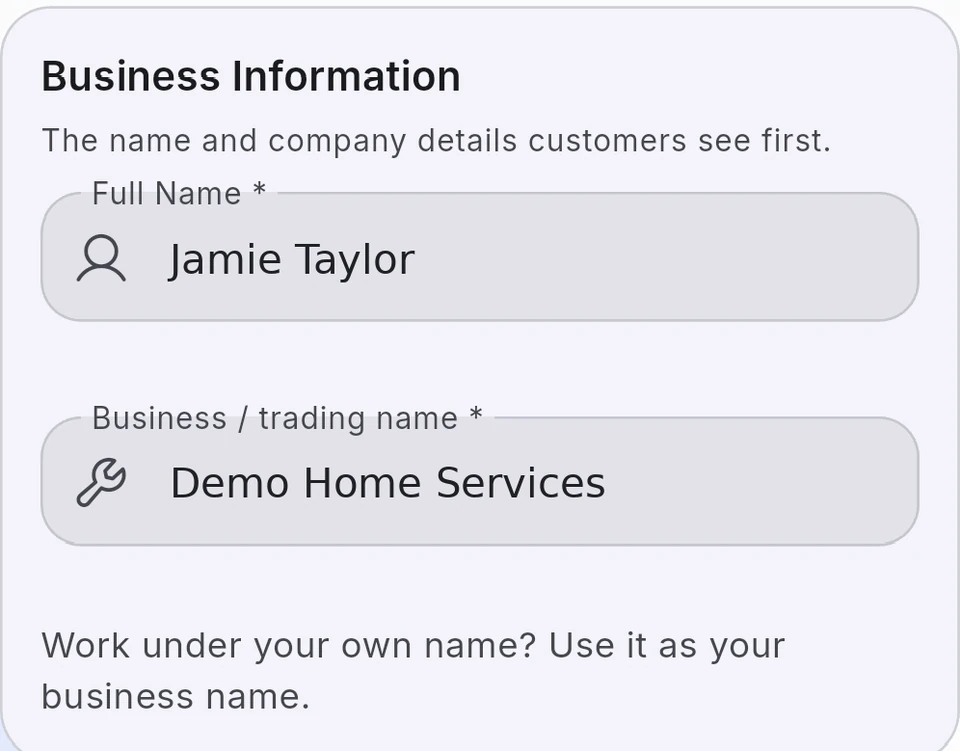 Real JobSmart screen · sanitized
Open Business profile and fill the essentials first.
- Your name
- Your trading name
- Business address
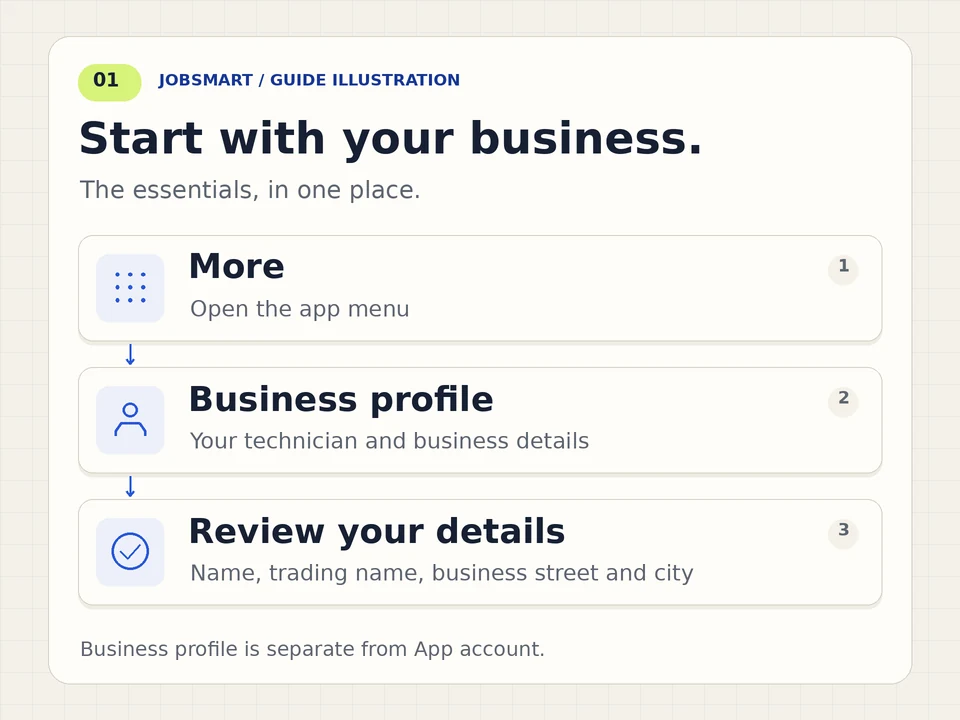
Motion is off by default. Play only if you want to watch.
Read the diagram
Open More, choose Business profile, add your technician name and business details, then save. Optional details can be added later.
Open More, choose Business profile, add your technician name and business details, then save. Optional details can be added later.
Download business profile GIF (animated)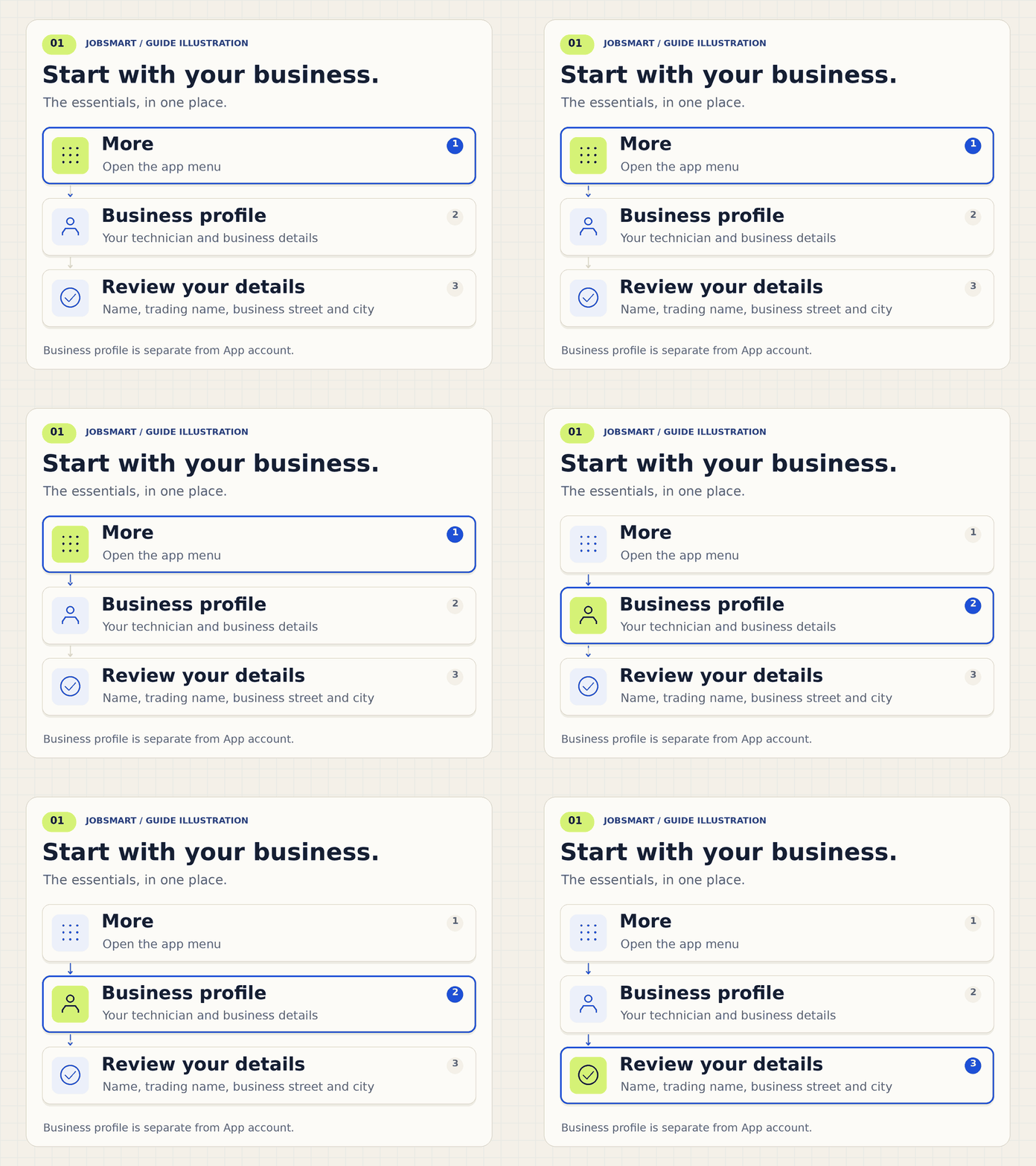
Your business address appears on invoices and your public booking page. Review it before sharing your booking link.
Account & save status
Know where your work lives.
App account is for Google sign-in and cloud sync. Business profile is for the details your customers and documents use.
Use the right account
Check the signed-in Google account under App account. On another device, use the same account and allow the supported restore flow to finish.
Check the actual save status
Signing in is not proof that changes have saved online. Look for pending changes, attention messages, or the actual Last saved online timestamp.
Keep local work safe
Essential work stays on the device. Online features need reachable services. If saving needs attention, open the status details and use the offered recovery steps.
More → App account
A profile draft is different from a saved profile. If you are stuck, keep your current work and use the in-app help before signing out or clearing data.
Screens are sanitized examples from JobSmart; they do not show a customer account. Reading this guide does not complete setup or change your workspace.