
Journey 03 / 04
Run the visit
Keep the visit and work record together, then hand the completed job over to invoicing.
Keep this guide nearby, then switch back to JobSmart to follow the steps.
Visit lifecycle
Follow the job’s next action.
Technician Mode is your active work screen, not another technician profile or account. The available actions depend on the job’s current state.
Review and schedule
Check the customer, service site, requested work and visit time. Review and confirm requests before treating them as appointments.
Travel and arrive
Use the travel, navigation and Arrived actions when appropriate. An On my way message is an action you choose; check the recipient and message before sending.
Keep the work record
Use the work screen to track time and record the diagnosis, work done, notes and selected photos. Follow the signature options offered for the job.
Complete and review
Choose Complete Job and review applicable charges and evidence, then save the job report. The work report documents the visit; the invoice requests payment.
Move to invoicing
Choose Create invoice now after completion, or find the job under Ready to invoice and choose Generate Invoice later.
Jobs → your job → its next action / Technician Mode
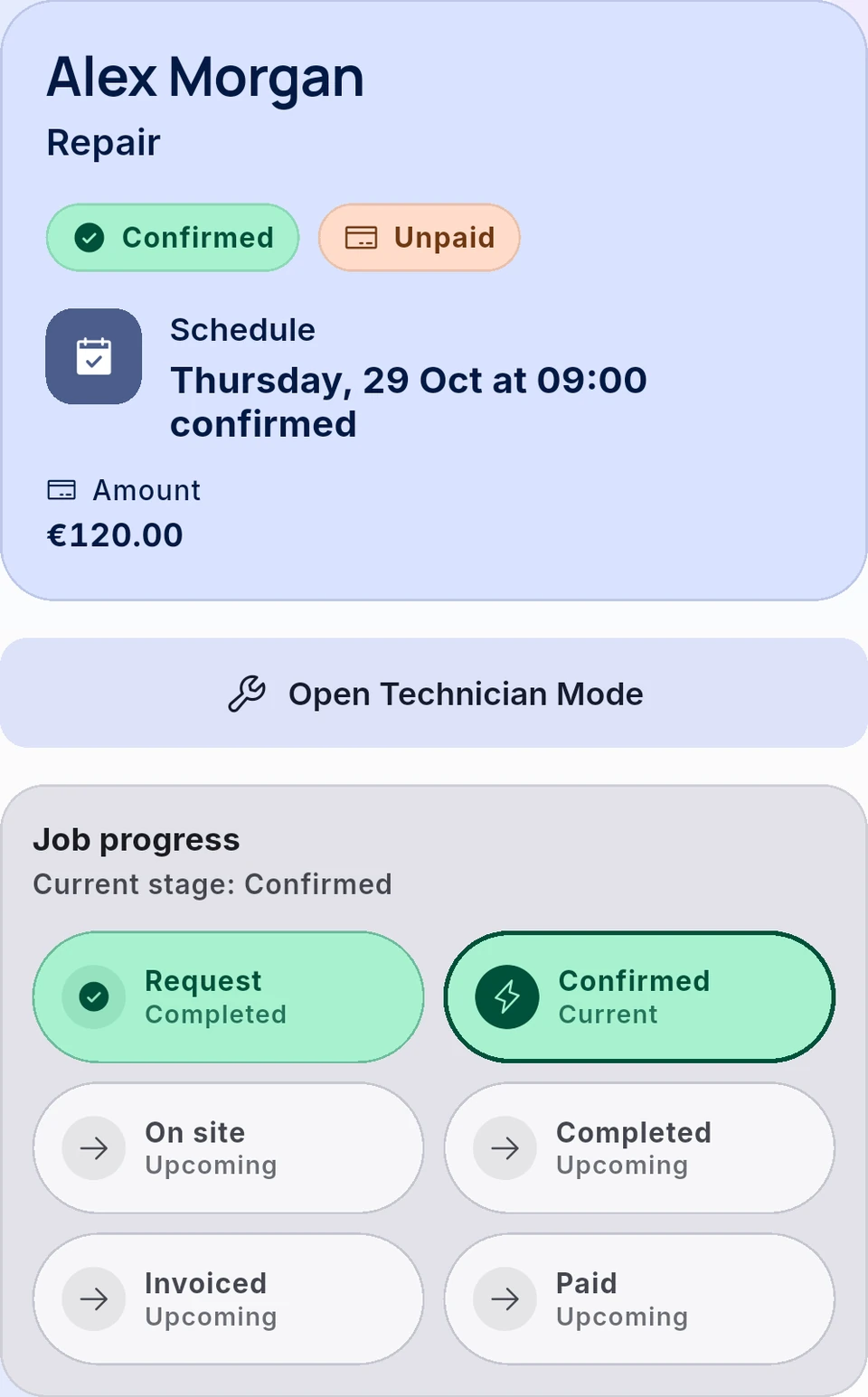 Real JobSmart screen · sanitized
Follow the current stage; each action keeps the visit record connected.
- Date and amount
- Current stage
- Open Technician Mode
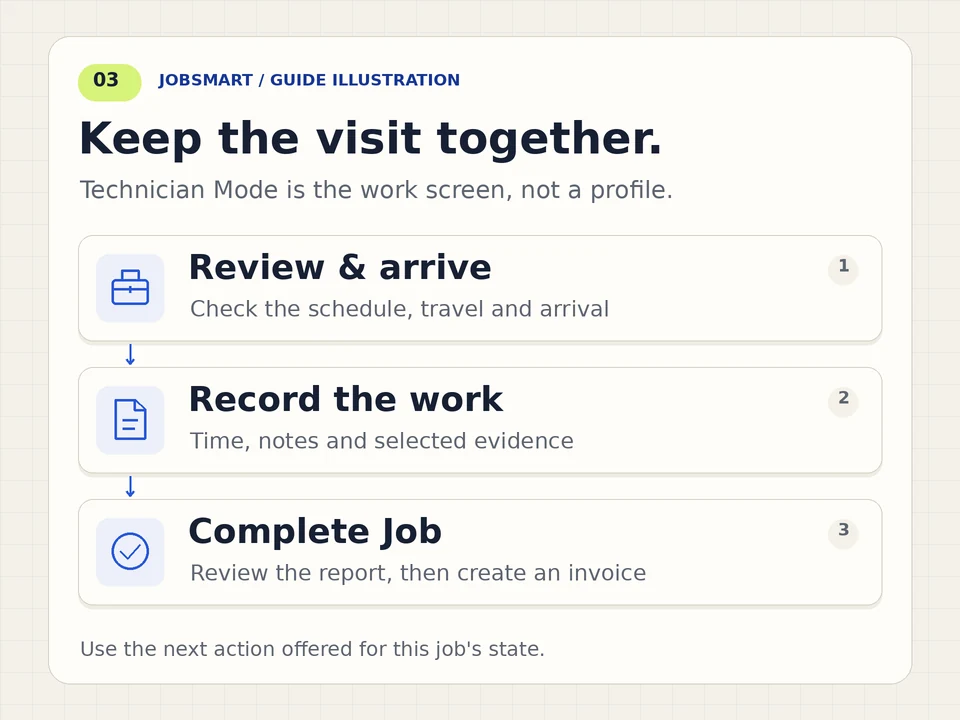
Motion is off by default. Play only if you want to watch.
Read the diagram
Review and schedule the job. Travel and mark arrival as appropriate. Record the work, time and evidence. Complete Job and save the report, then create an invoice now or later.
Review and schedule the job. Travel and mark arrival as appropriate. Record the work, time and evidence. Complete Job and save the report, then create an invoice now or later.
Download visit lifecycle GIF (animated)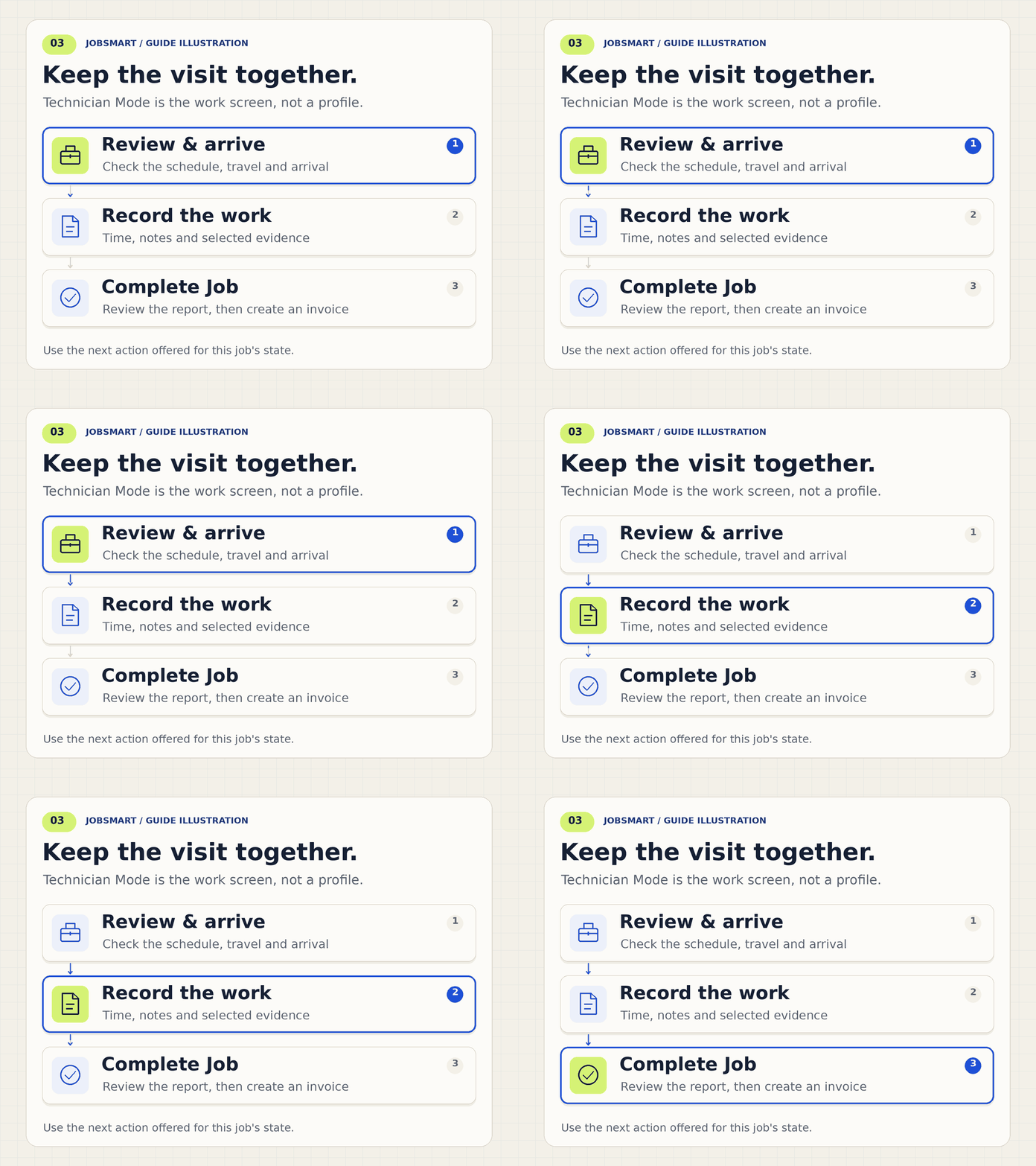
Navigation, sending and sharing stay under your control. Completing a visit does not confirm that the customer has paid.
Screens are sanitized examples from JobSmart; they do not show a customer account. Reading this guide does not complete setup or change your workspace.