
Journey 02 / 04
Add or receive jobs
Add work you already have, or let customers send a request through your optional booking link.
Keep this guide nearby, then switch back to JobSmart to follow the steps.
First job
I already have a customer.
Already have work to do? Add it yourself. You don’t need a published booking link to get started.
Start a new job
Open Jobs, tap the + button (Add job or customer), and choose New job. If setup is incomplete, finish Business profile and continue.
Describe the work
Enter the customer and service-site details, explain the work, and choose the visit date and time as prompted.
Save and review
Save the job and check its details. Jobs groups work by its next action; Calendar helps you review scheduled visits.
Jobs → + → New job
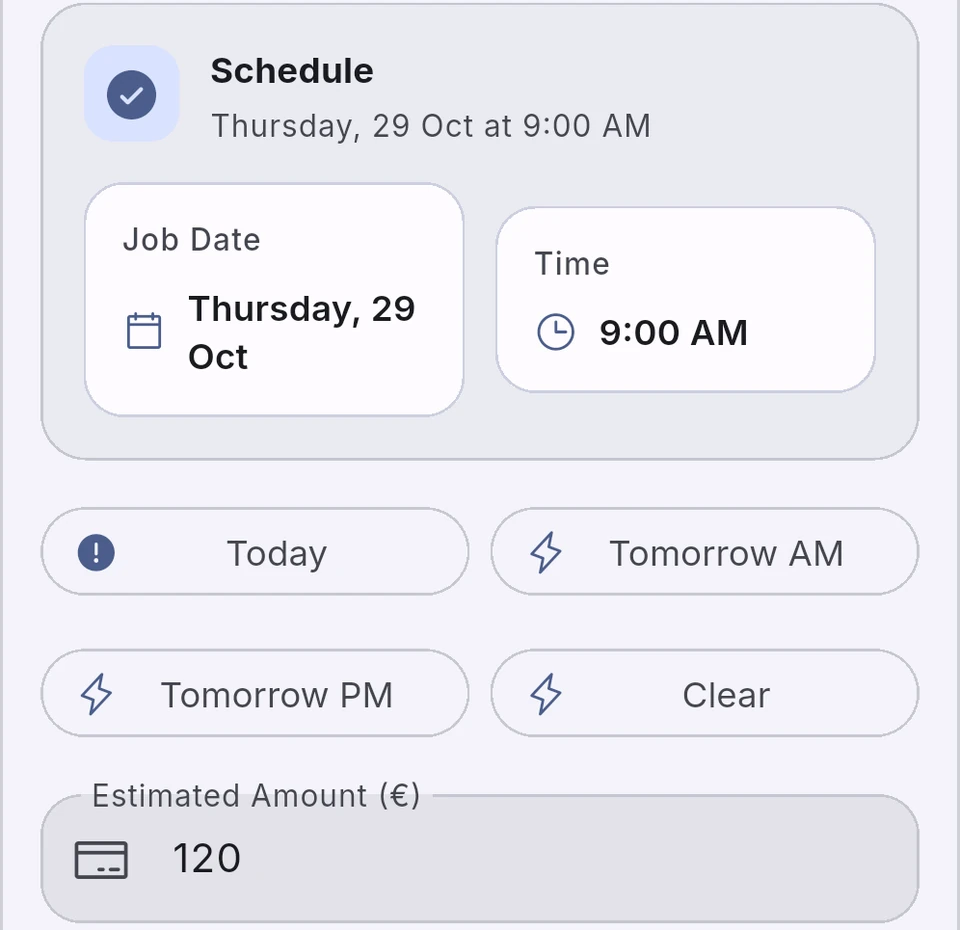 Real JobSmart screen · sanitized
Start a manual job with the customer, schedule and estimate.
- Customer issue
- Date and time
- Estimated amount
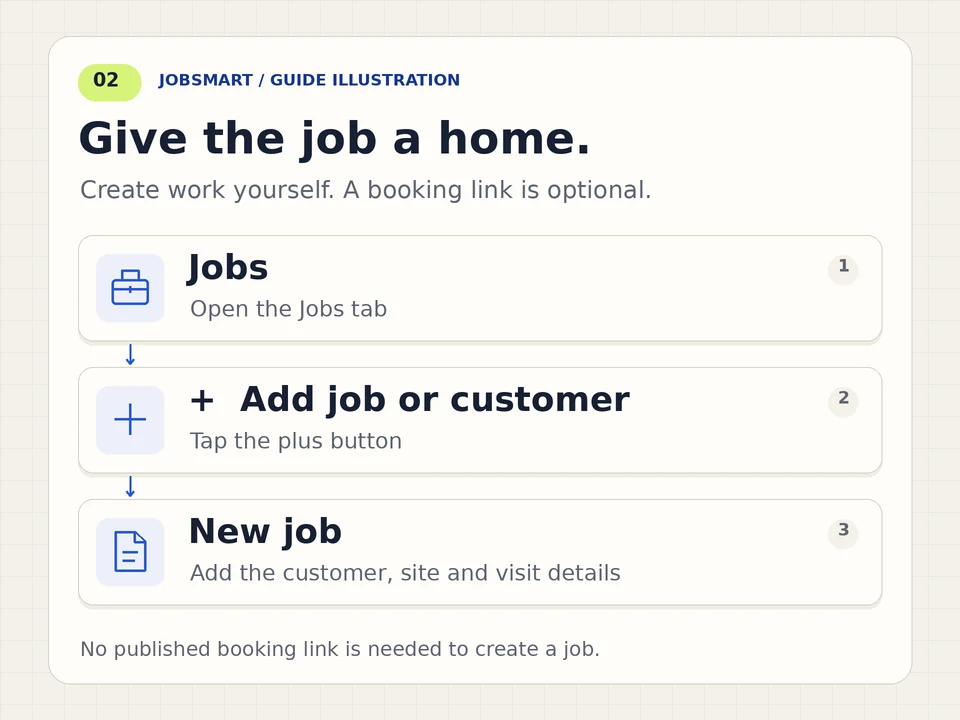
Motion is off by default. Play only if you want to watch.
Read the diagram
Open Jobs, tap the plus button, choose New job, fill in the customer and work details, then save and review the job.
Open Jobs, tap the plus button, choose New job, fill in the customer and work details, then save and review the job.
Download first job GIF (animated)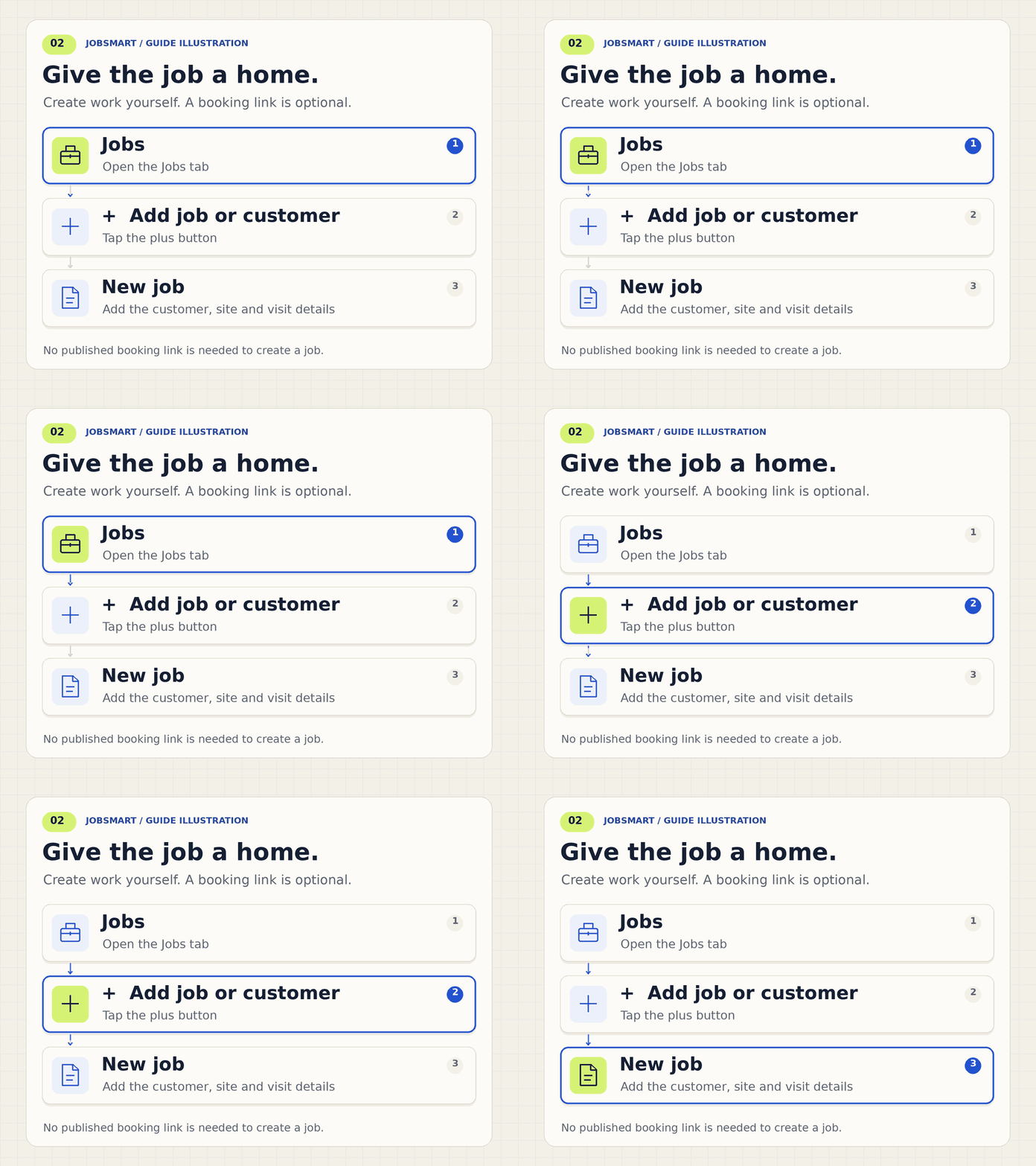
Need to finish later?
Follow the draft options offered by the app. A draft is not a confirmed appointment. Review the saved job and its next action before you leave it.
Jobs you create are real workspace records and use the current plan allowance. These diagrams do not add test jobs or change your quota.
Booking link · optional
I want customers to request work.
Your booking link is an optional way to receive structured requests. Customers can use it without a JobSmart account.
Review your public details
Save Business profile and check the business name, address, services, and contact details customers will see.
Publish when you are ready
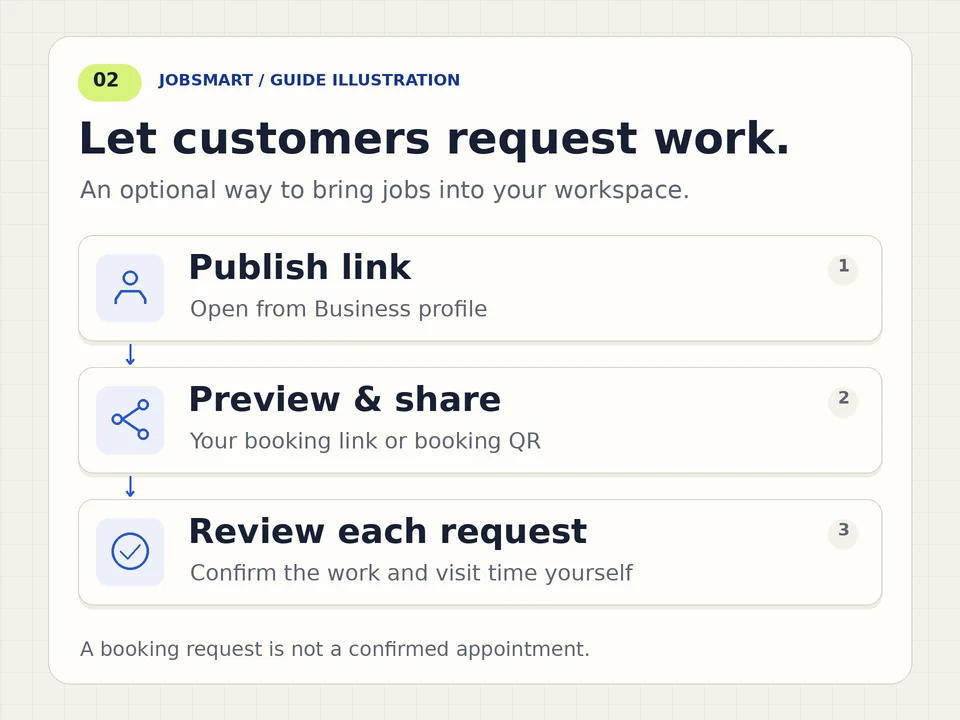
In Business profile, open Publish link. Preview the page, then copy or share the link or QR code where customers can reach you.
Review each request
Check incoming work in Jobs and confirm the details and schedule. A submitted request is not an automatically confirmed appointment.
More → Business profile → Publish link
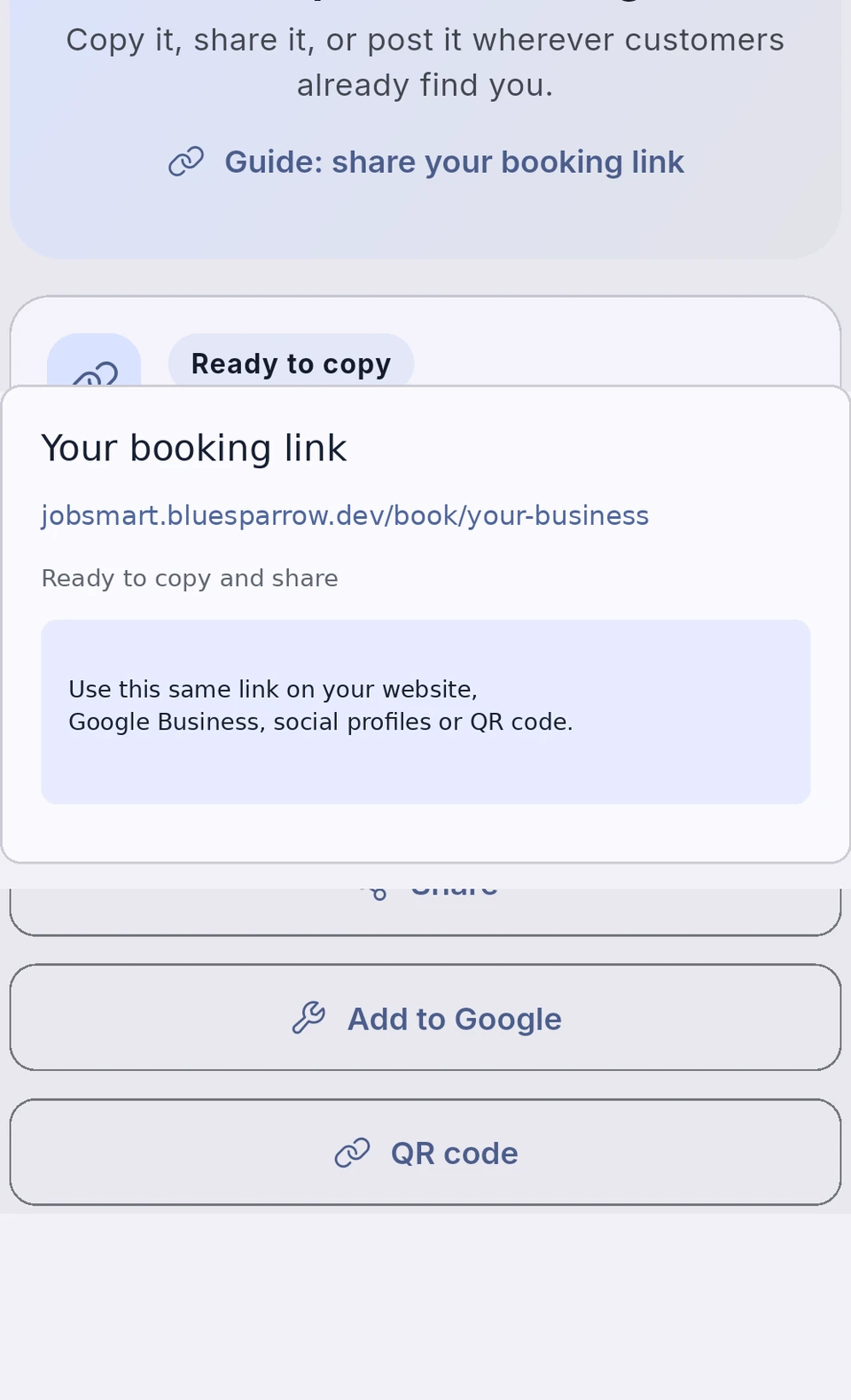 Real JobSmart screen · sanitized
Publish only when your public details are ready.
- Booking link
- Copy or share
- QR code
Motion is off by default. Play only if you want to watch.
Read the diagram
Save your Business profile and review the public page. Open Publish link to preview, copy or share the booking link or booking QR. Review incoming requests and confirm the work and schedule yourself.
Save your Business profile and review the public page. Open Publish link to preview, copy or share the booking link or booking QR. Review incoming requests and confirm the work and schedule yourself.
Download booking link · optional GIF (animated)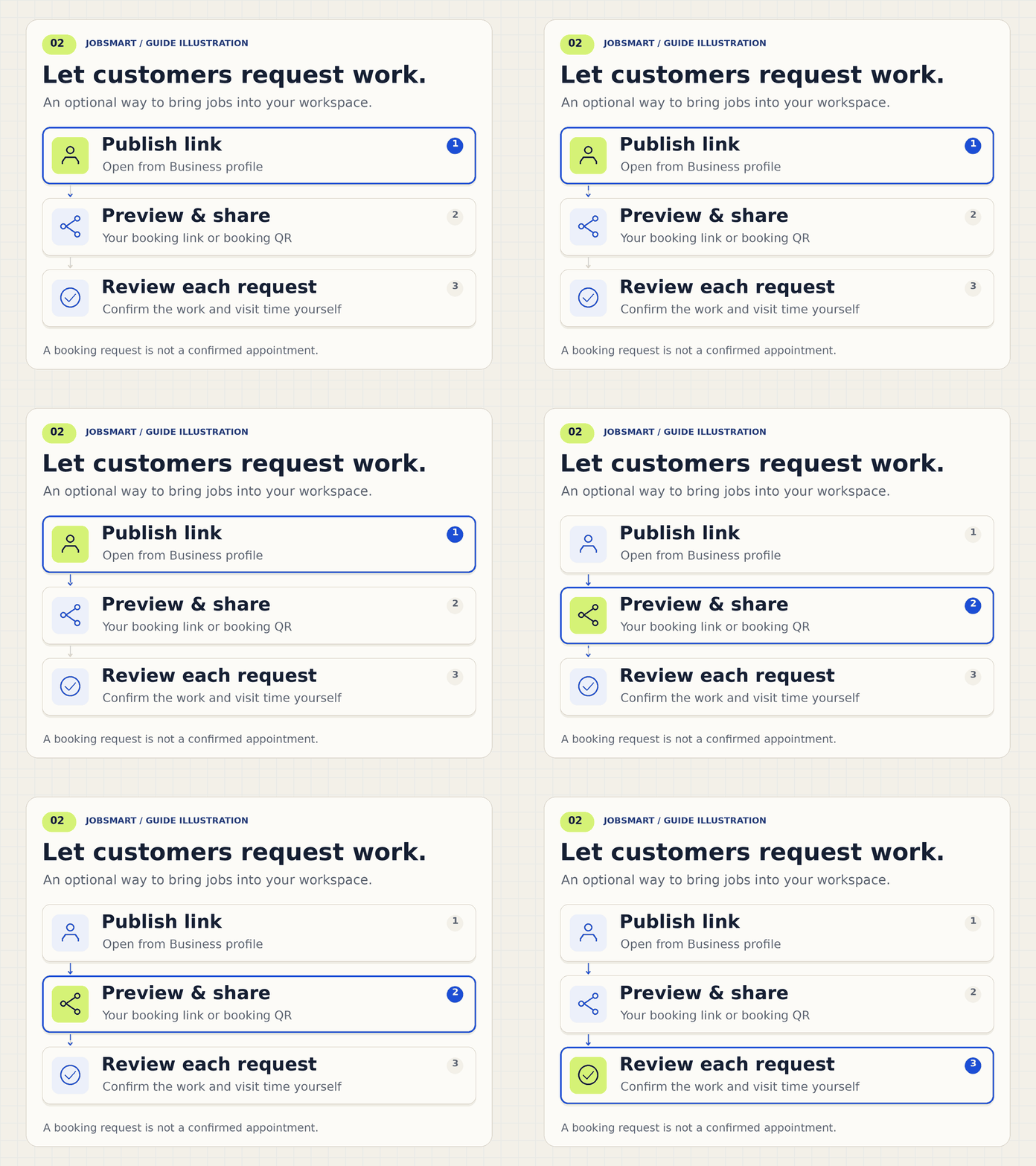
You can create jobs and invoices before sharing a link. Adding a link to Google Business depends on the options Google offers for your business and region.
Google Business Profile
Help customers find your request form.
Google Business Profile belongs to Google. JobSmart gives you a booking link to share; it does not create, verify or connect a Google listing for you.
Create or claim with Google
If you do not have a listing, follow Google’s official guidance to add or claim an eligible business and complete the verification Google offers.
Use the link options available to your business
Manage your existing profile with Google and look for a supported booking or appointment link option. Paste your JobSmart booking link and check the public result. Available options depend on your business and Google’s rules.
Give customers another way in
You can also put the link on your own website, social profile or customer messages, or display the booking QR. Keep your existing business website unless you deliberately choose to replace its URL.
Business profile → Publish link → copy your booking link
Where do I add the link in Google?
Google’s guidance, checked on 28 October 2026, says to open your Business Profile and choose Booking in Google Search, or Edit profile and the supported transaction type in Maps. Choose Add link (or Add another link), paste your booking URL and Save. If that option is unavailable for your listing, use your website or another sharing channel instead.
A booking QR opens the request form. It is different from an invoice payment QR. Publishing is optional and does not automatically confirm appointments.
Screens are sanitized examples from JobSmart; they do not show a customer account. Reading this guide does not complete setup or change your workspace.